
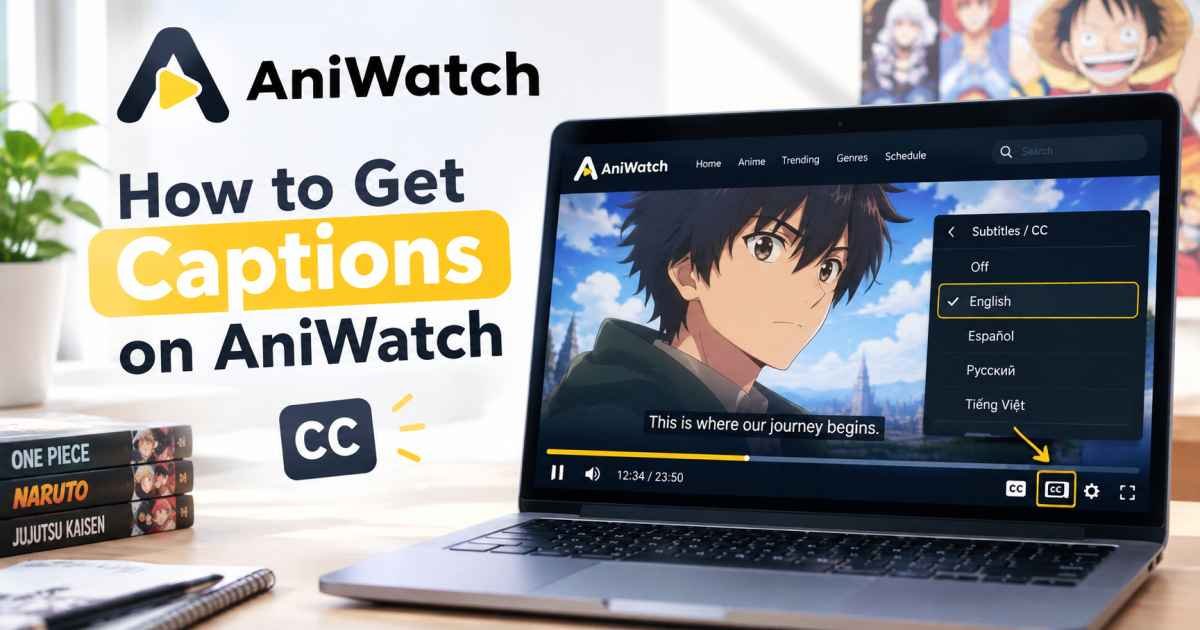

You can get captions back on AniWatch by opening the video player settings gear icon, selecting Subtitles/CC, and turning on the English text track. If the options are missing or blank, switching your video server from the default host to an alternative mirror link like MegaUp or StreamSB instantly forces the browser to reload the broken subtitle file.
We have all been there. You sit down to watch the latest action-packed episode of your favorite seasonal anime. The animation looks gorgeous in crisp high definition, and the Japanese voice actors are giving it their all. Then, you realize you have no idea what the characters are saying because the text track is completely missing from the bottom of your screen.
It is incredibly frustrating. You try refreshing the tab, but nothing changes. The good news is that this is rarely a permanent issue with the video file itself. Instead, it is usually a minor script communication error inside your web browser. Let us look at exactly how to fix this so you can get back to your show.
Why did your AniWatch subtitles disappear in the first place?
To fix the problem, you have to understand how these platforms stream data to your screen. AniWatch operates as an organized directory page rather than a massive data center. When you click play, hidden scripts fetch video streams from separate cloud locker networks.
The video frames and the caption files travel along two entirely independent paths. The video file is a massive asset, while the subtitle file is a tiny text file usually formatted as a .vtt or .srt extension. When a remote cloud server gets hit with millions of connections during a major weekend release window, it struggles to balance the load.
To prevent the video stream from buffering or crashing entirely, the server prioritizes heavy video data. It drops the lightweight text files to save processing power. That is why your video plays smoothly, but the characters speak in absolute silence. Your browser is simply waiting for a file that the remote server forgot to send.
Quick steps to turn on English captions manually
Most modern copycat streaming players hide their custom caption controls behind standard overlay icons. If you do not actively trigger them, the player assumes you want a raw, unedited feed.
Toggle the player gear icon
First, move your mouse or tap your smartphone screen to bring up the player controls. Look at the lower right-hand corner of the video matrix. You will see a small gear icon that controls your streaming preferences.
Click that gear. Scroll down the menu until you locate the tab labeled Subtitles/CC. If the status reads “Off,” click it and select English from the available list. This simple manual selection forces your browser to request the text asset again.
Switch the video hosting server
What happens if the Subtitles menu is completely grayed out or empty? This means the primary server you are using has dropped the text track completely.
Look directly underneath the main video player window. You will see a row of buttons listing different third-party hosting mirrors. They usually have names like VidCloud, UpCloud, MegaUp, or StreamSB. Click on a different server name. The player will reload for a brief second, pull a fresh stream from a totally different network, and restore your missing text tracks.
Advanced fixes for persistent subtitle loading errors
Sometimes, the quick fixes do not cut it. If you have toggled the settings and switched servers but still see nothing, the roadblock is likely happening inside your own device or browser configuration.
Clear your browser cache and site data
Your web browser loves to save old information to make websites load faster on your next visit. This saved information is called cache data. If your browser cached a broken version of the website during a temporary server hiccup, it will keep loading that exact same broken, captionless script every single time.
You need to force a clean slate. For example, if you are using Google Chrome on a desktop, press Ctrl + F5 simultaneously to perform a hard refresh. If you are on a smartphone, head into your mobile browser settings, select history, and clear your cached images and files for the past hour. This forces your browser to fetch the absolute latest scripts directly from the source.
Tweak your ad-blocker filter rules
Shady ad networks love to inject pop-under windows into free streaming sites, so using an open-source blocker like uBlock Origin is essential for safety. However, highly aggressive privacy filters can sometimes mistake subtitle delivery paths for annoying advertisement scripts.
Open your ad-blocker’s advanced console while you are on the streaming page. Look at the real-time block list. If you see lines of data ending in .vtt or .srt highlighted in bright red, your extension is actively killing your captions. Create a custom whitelist rule for the domain or temporarily drop the protection level to let those specific text tracks slip through safely.
How to fix missing captions when casting to a TV
Streaming anime on a compact mobile phone screen can feel restrictive. Naturally, you might want to cast the action over to a large living room smart television or a Chromecast device. This is where subtitle scripts break down most often.
Stop using native phone mirroring
Most people use their phone’s native “Screen Mirroring” or Apple AirPlay buttons to push their browser feed to the television. Here is why that fails: native mirroring protocols only transmit the raw, direct mp4 video URL to the smart TV’s built-in player.
Your television’s basic media player does not know how to run the external JavaScript rendering engine that prints the text overlay on top of the video frames. The video plays beautifully on your wall, but the text track stays trapped behind on your phone’s screen.
Use a dedicated media casting app
To solve this structural limitation, do not mirror your entire phone screen. Instead, download a dedicated third-party casting application such as Web Video Caster or BubbleUPnP from your official app store.
These applications act as specialized mobile web browsers. When you open the anime link inside their interface, they automatically detect both the hidden video stream and the independent subtitle file. The application physically bundles the text track together with the media stream into a single data package before sending it to your television. This guarantees your smart TV decodes and prints the English captions perfectly on your display.
FAQ Section
Why are captions not showing up automatically on AniWatch?
Captions fail to load automatically when a remote streaming server experiences heavy traffic and prioritizes video data over lightweight text files. You can fix this by clicking the settings gear icon on the player and manually selecting English from the Subtitles/CC menu.
Does changing the video server fix missing subtitles?
Yes, changing the video server underneath the player container fixes missing subtitles because it forces your browser to pull data from a completely different third-party network. If one host server drops the text track, switching to an alternative link like StreamSB will restore the captions.
Why does my ad-blocker turn off subtitles on anime blogs?
Aggressive ad-blockers occasionally mistake external text extensions like .vtt or .srt for hidden pop-up advertisement scripts, blocking them from loading entirely. You can resolve this by opening your extension’s advanced logger panel and adding a custom filter rule to allow subtitle assets.
How do I keep my captions synchronized when a video lags?
If a video buffers and the text track gets out of sync, open the player configuration wheel, drop your streaming playback resolution from 1080p to 720p, and hit refresh. This lowers the bandwidth strain on your internet connection, allowing the video frames and text lines to realign perfectly.
Conclusion
The single most important takeaway is that missing captions on AniWatch are almost always caused by a server communication error that can be easily resolved by switching the hosting mirror source or manually toggling the internal player gear settings.