
If you want to keep your desktop downloads perfectly organized after saving them, check out our comprehensive guide to setting up a local media server library.
Let me know if you run into any specific error codes or if your download manager is failing to parse the links so I can give you custom troubleshooting steps.
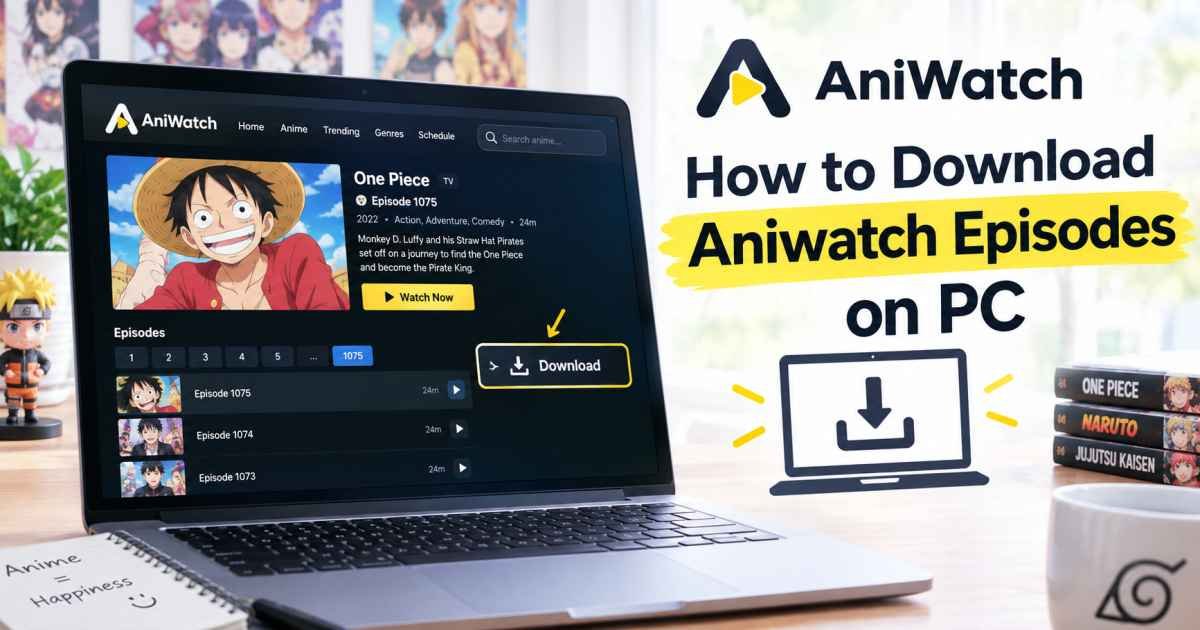
To learn how to download aniwatch episodes on pc, you need to use a browser extension like Video DownloadHelper, a dedicated media grabber like JDownloader 2, or inspect your browser’s network tab to extract the streaming source file. Because streaming sites change their domain names and video players frequently, traditional right-click saving does not work on these platforms.
You have likely tried those generic online video converter websites. You paste the link, click download, and get hit with three pop-up windows advertising sketchy antivirus software. Meanwhile, the actual video never downloads. Let us bypass that headache entirely.
The Browser Extension Method (Fastest Approach)
Using a dedicated browser extension is the easiest way to pull video files directly from your browser cache while the video plays.
Setting Up Video DownloadHelper
First, head over to the Firefox Add-ons store or the Chrome Web Store. Search for Video DownloadHelper and click install. Firefox handles video stream extraction slightly better due to fewer browser restrictions on media extensions, but Chrome works perfectly fine too. Look for the icon resembling three colored balls in your browser toolbar. It stays greyed out until you visit a site with active media files playing.
Capturing the Stream
Now, pull up the specific anime episode you want to save on the website. Let the video play for at least five seconds. You will notice the grey extension icon suddenly lights up in full color. Click it.
A dropdown menu will appear listing several video resolutions, usually ranging from 360p up to 1080p. Choose your preferred quality file. If the extension asks you to install a “Companion App,” accept it. This lightweight helper app sits on your hard drive to stitch the separate video and audio chunks together into a single, clean MP4 file.
The JDownloader 2 Method (Best for Batch Downloads)
If you plan on downloading an entire season of twenty-four episodes for a long flight, grabbing them one by one via an extension is tedious. That is where a dedicated download manager saves the day.
Installing and Configuring JDownloader
Download and install JDownloader 2, a free, open-source download management tool. During installation, make sure to uncheck any optional adware bundles that sometimes sneak into open-source installers. Once opened, keep the program running in the background. It features a built-in clipboard observer that scans every link you copy.
Grabbing the Direct Video Links
Go to your browser and copy the URL of the episode page. JDownloader 2 will automatically parse the page under its “Linkgrabber” tab. Here is the trick: sometimes streaming sites mask the actual video source inside an iframe container.
If the main page link shows nothing, right-click on the streaming video player itself, select “Inspect,” and look for the source URL inside the
<iframe> tag—usually pointing to servers like Megacloud or StreamSB. Copy that specific internal player link. JDownloader will immediately find the underlying .mp4 or .m3u8 video stream, allowing you to right-click and select “Start Download.”The Developer Tools Method (No Software Required)
What if you do not want to install extra software or extensions on your computer? You can use the native developer tools already built right into Chrome or Edge.
Finding the Streaming Source Network Data
Open the anime page on your computer. Before hitting play, press F12 on your keyboard to open the Developer Tools panel. Click on the Network tab at the top of the panel.
[Developer Tools] -> [Network Tab] -> Filter: "m3u8" or "mp4" -> Play Video
In the filter box at the top left of the network panel, type
m3u8 or mp4. Now, press play on your anime episode.Fetching the File via IDM or VLC
You will see several lines of data appear in the network log. Look for the largest file size or a file named
master.m3u8 or index.m3u8. Right-click that specific row, hover over “Copy,” and select “Copy URL.”Take that copied URL and open VLC Media Player. Click on Media in the top menu, choose Open Network Stream, paste your URL, and click the small arrow next to “Play” to select “Convert.” This saves the live internet stream straight to your local storage as a standard video file.
Troubleshooting Common Download Errors on Aniwatch
Sometimes things go wrong. Streaming sites use evolving security measures to protect their data streams, which can occasionally break your downloading software.
Fixing the “No Media Found” Extension Error
If your browser extension shows a zero next to it and fails to detect the video, the issue usually stems from the video server player. Most platforms offer multiple server options located just below the video player window, labeled as Vidstreaming, MegaCloud, or StreamSB. Switch to a different server, refresh your webpage, and try the capture process again.
Handling Interrupted Downloads and Network Timeouts
Did your download freeze up at 85%? Streaming site servers frequently expire their temporary download tokens after an hour or two. If a large file download stalls out, you cannot simply hit resume. You will need to refresh the streaming page in your browser, grab the fresh media URL using the network method outlined above, right-click the broken download in your manager, and paste the new URL to complete the process.
6. FAQ Section
Why do my downloaded anime episodes have no audio?
This happens when a site serves the video track and the audio track as two completely separate streams to save bandwidth. To fix this, use Video DownloadHelper along with its official companion app, or download via JDownloader 2, both of which automatically recombine the audio and video tracks into one file.
Is it safe to download episodes from these platforms onto my PC?
The downloaded video files themselves are generally safe, but the pop-up ads and hidden redirect links on the streaming sites can host malicious scripts. Always run an active ad-blocker like uBlock Origin in your browser while extracting your links to keep your system clean.
Can I download an entire anime series all at once?
Yes, but you cannot do it by just pasting a single main series link. You must open the episode pages inside separate browser tabs and use JDownloader 2 to capture the links simultaneously, allowing you to batch-download the files overnight.
What is the best video quality available for download?
Most files max out at 1080p or 720p resolution with standard stereo audio tracks. The exact file size generally ranges between 250MB and 450MB per twenty-four-minute episode, depending on the compression quality of the active server.
7. Conclusion
The most reliable way to handle how to download aniwatch episodes on pc is to capture the underlying video stream using JDownloader 2 or the Video DownloadHelper extension, rather than using untrustworthy web-based conversion sites. Grab a clean download tool, stick to a dependable server block, and you can build an offline media library that works perfectly without any buffering or internet connection.