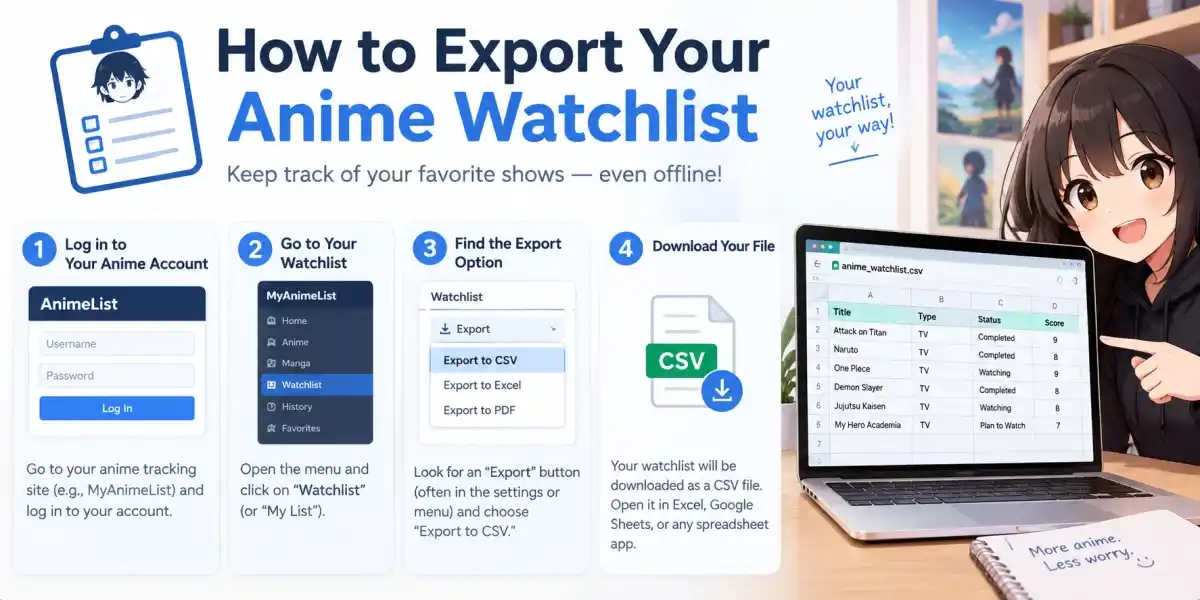

You can back up your personal watch history by navigating to your profile settings, clicking the export watchlist button, and downloading a raw XML file to your computer. This text file stores your entire database record, allowing you to instantly upload and restore your list on official tracking networks like MyAnimeList if an unverified domain vanishes overnight.
Here is the thing. Building a tracking profile takes years of real dedication. You track individual episodes, log seasonal release drop dates, and rank show reviews across hundreds of titles. Then, a sudden domain block happens, the database links break, and your entire digital diary vanishes into thin air.
Most people get this wrong by assuming their data is permanently lost. The reality is that underground platforms almost always include local database management logs before they shift operations. Let us look at how to pull your records out safely so you never have to rebuild your watch history from absolute scratch.
Understanding the automated data migration format
Web servers do not store your watch records as beautiful, visual grids. Instead, they organize every piece of user interaction as simple lines of text code inside an structured database array.
When you configure custom user badges or update your episode progress on a show like Jujutsu Kaisen, the system adds a line item containing the specific media ID and a numerical count. This compressed approach makes it incredibly lightweight to move thousands of user profiles across different domain mirrors without heavy bandwidth costs.
The standard format for this transfer is an Extensible Markup Language file, commonly known as an XML document. It looks like a complex jumble of brackets and tags to a casual reader, but official tracking systems read it instantly. Having a copy of this text track means you own your data independently of whatever happens to a specific website address.
Step-by-Step guide to download your list backup
Extracting your data takes less than two minutes if you know where the developers hide the archive switches inside the user interface.
Locate the data settings dashboard
First, head over to the portal homepage and ensure you are logged into your individual profile account. Click your custom user avatar icon situated in the upper right-hand corner of the screen layout.
Select the account dashboard link from the drop-down menu. Scroll down past your active comment logs and friends list until you locate a sub-section labeled account utility or database tools.
Trigger the direct download request
Inside this utility framework, you will spot a prominent link marked Export Watchlist. Click this button once.
The web server will take a few seconds to compile your unique watch metrics into a downloadable string. A prompt will appear asking you to save a document named something like
anime_list_backup.xml. Save this specific file to a safe local folder on your computer desktop or smartphone storage drive, and do not alter the file extension.How to import your anime database into MyAnimeList
Once you have your text backup file secured locally on your hardware, the next step is pushing it onto a permanent, 100% legal tracking utility database.
Access the official import portal tool
Open a fresh browser window, head over to the official MyAnimeList portal page, and sign into your verified account. Navigate directly to the advanced profile utilities panel or type
/import at the end of the root domain string.The system will present a list of compatible source platforms. Select the generalized XML format option from the primary drop-down list to configure the correct upload script parameters.
Upload the data file and verify the status
Click the file selector button and pick the
anime_list_backup.xml document you saved earlier. Hit the upload button to start the processing loop.- Phase 1: The system checks the file integrity to ensure the layout parameters match standard database values.
- Phase 2: Automated matching scripts link the remote media ID codes to official show names.
- Phase 3: The tracker app updates your personal display grid, showing your total watch counts and scores accurately.
Common data sync errors and quick fixes
Sometimes the sync loop hits a snag because clone domain operators use outdated script tracking values that do not perfectly align with official databases.
If your upload fails or throws a format rejection error code, do not panic. Open the saved XML file using a basic system application like Notepad or TextEdit. Look at the very first line of code; it must contain a standard tag string reading
<?xml version="1.0" encoding="UTF-8"?>. If this line is missing or contains broken characters from a corrupted site cache, paste the correct string directly at the top of the document, hit save, and try the import process again.FAQ Section
Can I watch full anime episodes after importing my list to MyAnimeList?
No, you cannot watch full episodes on MyAnimeList because the platform functions strictly as an official metadata tracker and watchlist management guide. The app stores your episode numbers and review logs safely, but it does not host or link to unlicenced video streaming files.
Why does my watchlist export file show up as a blank document?
A watchlist export shows up as a blank document when the proxy site server is experiencing high traffic congestion during peak hours, causing the database script to time out. You can resolve this issue by waiting until off-peak hours or switching to an alternate mirror link to request the file download again.
Is it safe to upload my personal XML data backup files to external trackers?
Yes, it is completely safe to upload your XML data backup files to external trackers because these files contain only plain text lines recording your watch statistics and show scores. They do not hold personal billing details, email passwords, or sensitive local hardware configurations.
How do I fix missing show names after running a watchlist migration loop?
If a specific show name is missing after a migration loop, it means the clone domain used an unofficial title variation that the main database could not match automatically. You can easily fix this by heading to your profile list, searching for the show manually, and adding the episode progress by hand.
Conclusion
The single most useful takeaway is that downloading a clean XML data backup file from your profile settings allows you to protect your entire watch history from sudden domain takedowns and sync it securely to stable tracking networks.